

Paystub Studio lets you generate paystubs for as many pay periods as you need in a single order. Whether you need to catch up on three months of documentation or prepare a full quarter of pay records, every pay period you add is included in the $4.99 flat rate.
When to Use Multiple Pay Periods
Adding more than one pay period is useful when you need to:
- Build a pay history for a rental or loan application that requires two or three months of paystubs
- Catch up on documentation if you've been paying yourself or an employee without generating stubs
- Show year-to-date totals that reflect several months of earnings rather than a single period
Each pay period produces its own page in the final PDF, with accurate year-to-date totals that accumulate across all periods in the order.
How to Add Pay Periods
Set up your pay configuration first
Before adding pay periods, select your pay type (hourly or salary), enter the pay rate, and choose the pay frequency (weekly, bi-weekly, semi-monthly, or monthly). The frequency determines how dates are auto-calculated for each new period.
Fill in your first pay period
Enter the start date for your most recent pay period. The end date and pay date are calculated automatically based on your pay frequency. For hourly employees, enter regular and overtime hours.
Click "Add Another Pay Period"
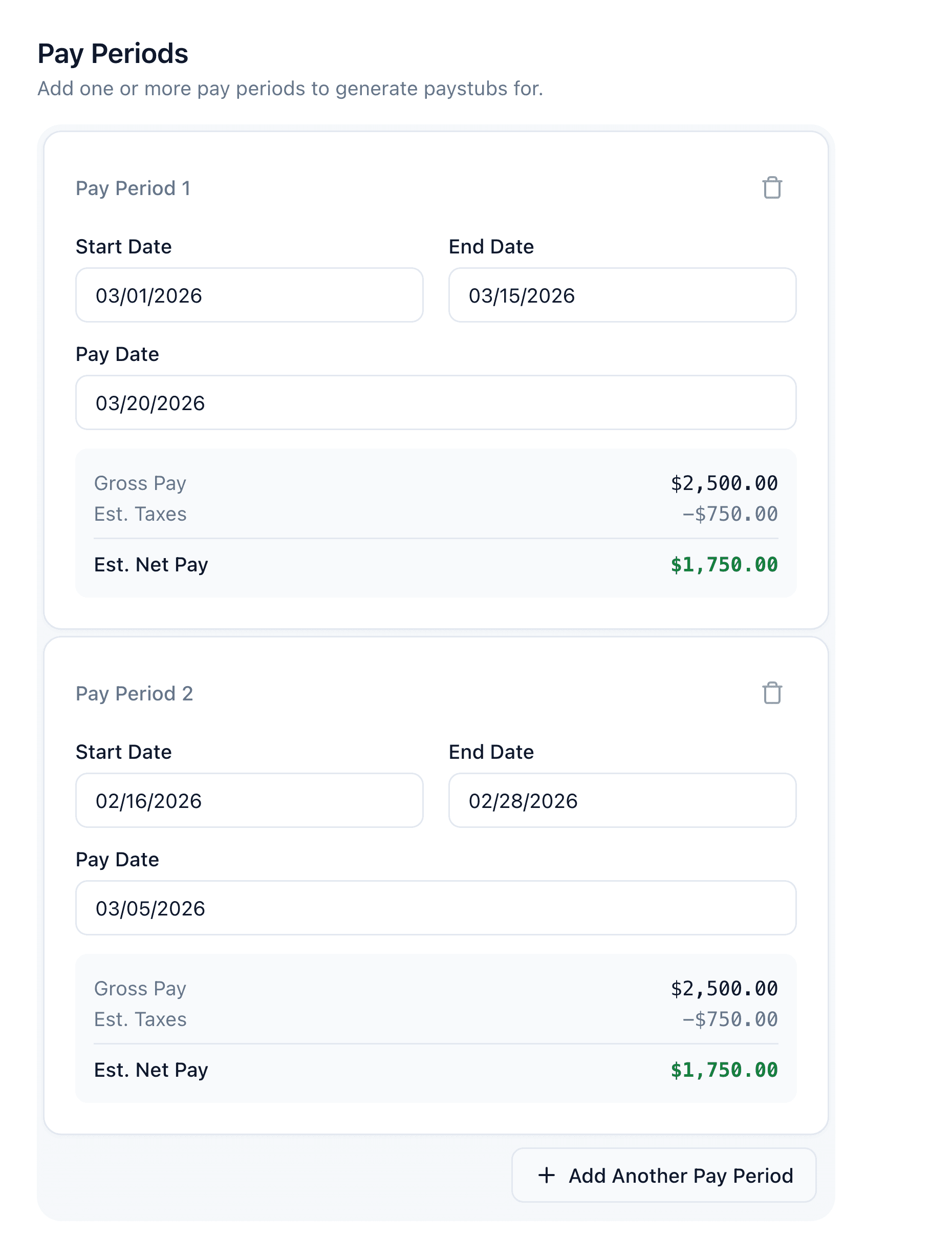
At the bottom of the Pay Periods section, click the Add Another Pay Period button. A new period appears with dates automatically calculated backward from your first period.
Review and adjust dates
Check the auto-filled dates on each new period. The system fills them in based on your pay frequency, but you can adjust any date manually if your schedule differs.
How Dates Are Auto-Calculated
When you add a new pay period, Paystub Studio fills in dates automatically based on the first period and your selected pay frequency. New periods are calculated backward in time from your first (most recent) period.
| Pay Frequency | How New Periods Are Offset |
|---|---|
| Weekly | Each new period goes back one week |
| Bi-weekly | Each new period goes back two weeks |
| Semi-monthly | Alternates between 1st–15th and 16th–end of month |
| Monthly | Each new period goes back one full month |
Enter your most recent pay period first. Each additional period you add will automatically fill in dates for the previous period, working backward through your pay history.
How Year-to-Date Totals Work
One of the main reasons to include multiple pay periods is to build accurate year-to-date (YTD) totals on each paystub. Here's how it works:
- Paystub Studio determines how many pay periods occurred before your earliest entered period, going back to January 1 of the tax year
- It runs those prior periods through the tax engine to estimate your cumulative earnings and withholdings up to that point
- Your entered periods are then calculated in chronological order, with each one adding to the running YTD total
The result is that each paystub page shows realistic YTD totals — not just the current period's numbers. This matters for applications where a verifier is looking at your cumulative earnings for the year.
For salary employees, prior period estimates use your current pay rate. For hourly employees, they use the average hours across all the periods you've entered.
The Inline Pay Summary
Each pay period shows an inline summary with three numbers:
- Gross Pay — your total earnings for that period before taxes
- Est. Taxes — a quick estimate of federal and FICA taxes (the final PDF uses the full tax engine for precise calculations)
- Est. Net Pay — your approximate take-home after the estimated taxes
These estimates help you spot errors before you get to the preview step. If a period shows $0.00 earnings, check that you've entered the correct pay rate and hours.
Removing a Pay Period
To remove a pay period, click the trash icon in the top-right corner of that period's panel. A confirmation dialog will appear asking you to confirm the removal. This action cannot be undone — if you remove a period by mistake, you'll need to add a new one and re-enter the dates.
The trash icon only appears when you have two or more periods. You cannot remove the last remaining period.
What You Get in the Final PDF
Each pay period generates its own full page in the downloaded PDF. If you add three pay periods, you'll receive a three-page PDF. Each page includes:
- Company and employee information
- Earnings breakdown for that specific period
- Deductions with both Current and YTD columns
- A summary bar showing YTD gross, YTD taxes, YTD deductions, and YTD net pay
- Page numbering (e.g., "Page 1 of 3")
All pages are included in the $4.99 flat rate — there is no per-page or per-period charge.